Open app
Launch any app on the PC, picked from a list with real icons. Turn on If it's already open, bring it to the front and DeckPad switches to its window instead of starting a second copy.
Features
Every key on your phone runs an action on your Windows PC: open apps and websites, press shortcuts, type text, control media, volume and OBS Studio. Here's the full tour, plus how the deck, the editor and the connection work.
Actions
Actions are grouped the way Stream Deck groups them. Pick one, fill in its settings, done.
Launch any app on the PC, picked from a list with real icons. Turn on If it's already open, bring it to the front and DeckPad switches to its window instead of starting a second copy.
Open a web page in your default browser. Links such as mailto:, ms-settings: (Windows settings pages), steam:, spotify: and discord: work too.
Open a document, a project folder or any file on the PC with its usual app.
Press a key combination: Ctrl+C, Win+Shift+S, function keys, or a shortcut only your favourite app knows. You pick it on a full on-screen PC keyboard, with an extra row for F13–F24 and media keys.
Type a saved snippet into whatever has focus: an email signature, an address, a reply you send all the time.
Play or pause, next track, previous track and stop, for whatever is playing on the PC.
Volume up, volume down, mute, or jump straight to a level you choose.
Lock the PC, put it to sleep, show the desktop, or start a screenshot. System keys can ask first.
A key that opens a whole new set of keys, so one page can hold far more than it shows.
Switch to another deck: one for work, one for streaming, one for gaming. You can also switch profiles from the deck menu.
Several actions from one press, in order: open your apps, set the volume and start the music. A step-by-step builder for these on the phone is coming in an update.
Switch scenes, start or stop streaming, start or stop recording. Details below, and the streaming guides.
System keys have an optional Ask first switch in the editor. With it on, the phone asks before anything happens on the PC, for example “Put the PC to sleep?” with Sleep and Cancel, or “Lock the PC?” for a Lock key.
It's on by default for Sleep, and you can turn it on or off for any system key.
Streaming
DeckPad controls OBS Studio through the remote control (WebSocket server) built into OBS 28 and newer. Three actions:
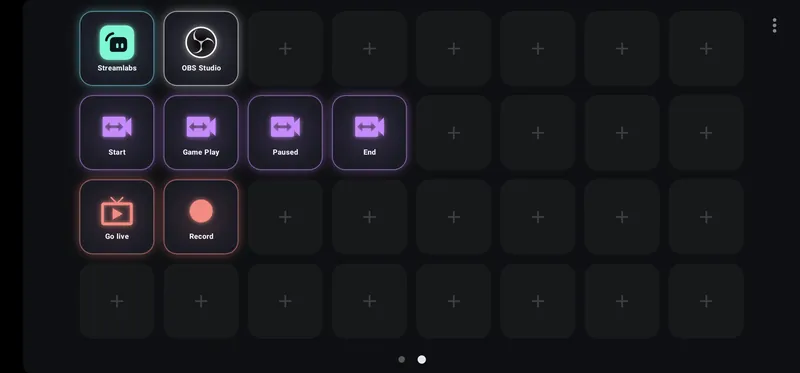
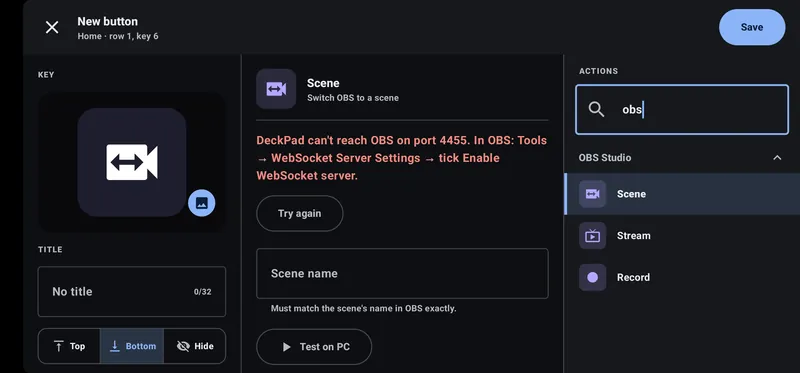
That's it: DeckPad reads the port and password from OBS's own settings on the PC, so you never copy the password anywhere. DeckPad only talks to OBS on the same PC, and the password never goes to your phone.
DeckPad tells you what's wrong: OBS isn't open, it's older than version 28, or its WebSocket server is off. Every message and its fix is in OBS troubleshooting. If you've set the password some other way, put it in DeckPad's settings file as described in the OBS setup guide.
The OBS actions control OBS Studio, not Streamlabs. With Streamlabs, give each scene a hotkey in Streamlabs (Settings → Hotkeys) and press it with a Shortcut key. The Streamlabs setup guide walks through it.
Pages and grids
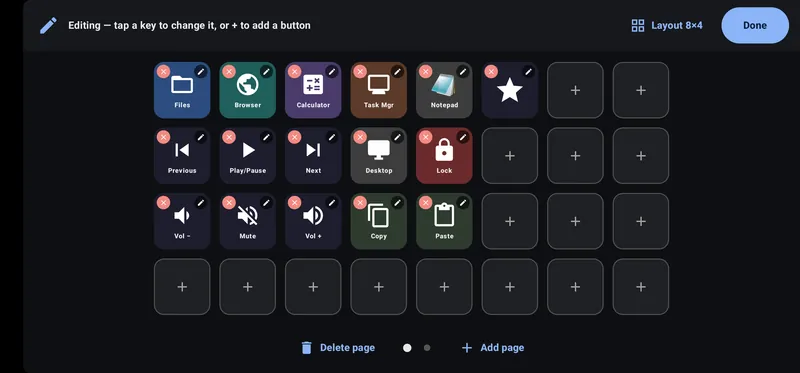
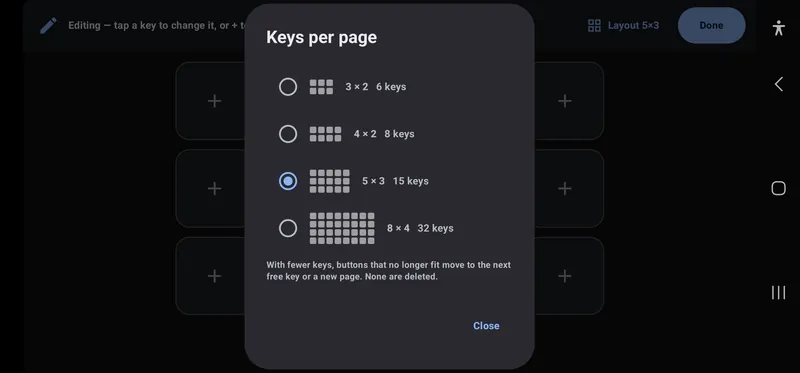
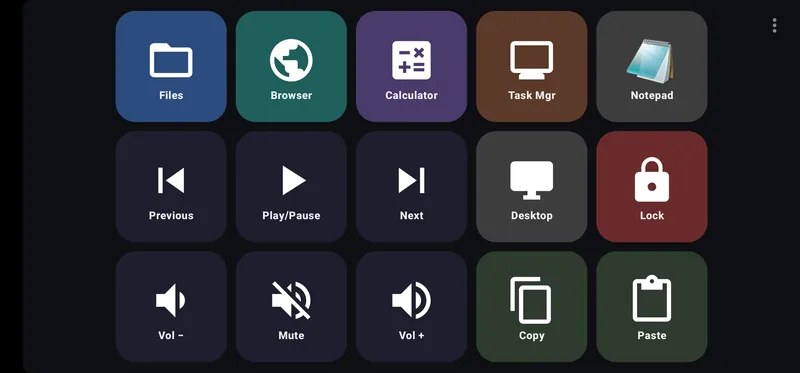
Choose how many keys each page has, matching the familiar Stream Deck sizes: 3×2, 4×2, 5×3 or 8×4.
For developers
Deck menu ⋮ → Add page → Developer fills a page with your dev apps and the Windows shortcuts for managing windows and virtual desktops. App keys are matched by name against the apps on your PC.
Every key is always added. One whose app isn't installed opens its web version or download page and shows a small yellow download badge, then switches to the real app by itself once you install it. Long-press it to Get the app on the PC, Choose an app, or Keep the website.
Shown with Glow turned on. A new Developer page starts with plain keys; you choose which ones glow.
Editor
Laid out like Stream Deck's: the key preview and title on the left, the action's settings in the middle, and a searchable list of actions, grouped by category, on the right. On a phone held upright the panes stack.
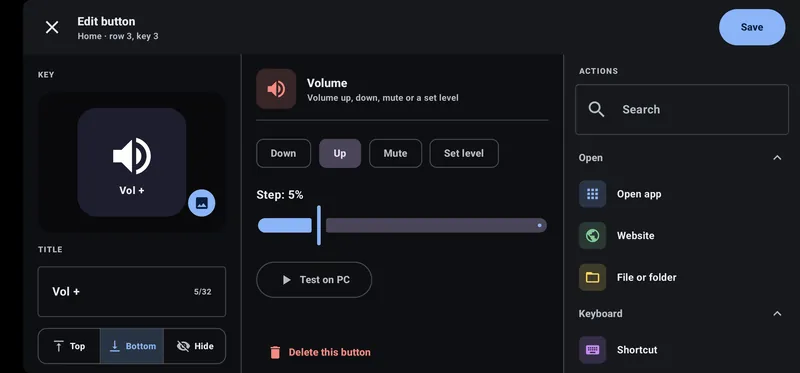
A new key takes its action's icon automatically until you pick your own.
App buttons use the app's real icon from your PC.
Choose from a built-in set of symbols for everything else.
Switch it on for a neon edge and halo around the key, in eight colours or white. The key itself turns dark so the colour stands out.
Test on PC tries the action before you save it.
Your buttons are saved on the PC, with a backup each time. If you reset or replace the phone, pair again and your deck comes back.
Hotkey picker
When a key runs a Shortcut, you don't type its name: you tap it out on a full on-screen PC keyboard, function row, navigation keys and all. Ctrl, Alt, Shift and Win stay held while you pick one other key, and the combination shows as you build it.
An extra row holds F13–F24 and the media and volume keys, handy for shortcuts no physical keyboard has.
Connection
Plug in for the fastest presses, or go wireless. Either way the phone talks straight to your PC, with nothing in between.
A few milliseconds
The fastest way: a press reaches the PC in a few milliseconds, and the phone charges while you use it. Uses Android's USB debugging. DeckPad keeps the connection up on its own when you unplug and replug.
No cable at all
No cable and no developer options. Works with a PC the phone is already paired with, over an encrypted Bluetooth connection. A little slower than USB, but still quick for button presses.
If the PC restarts or DeckPad is closed, the phone greys out its keys and reconnects by itself as soon as the PC is back. Wi-Fi isn't supported yet.
Made for old phones
That phone in your drawer is a desk panel waiting to happen.
Security and privacy
Only a phone you've paired can press your PC's keys. No cloud and no account: your buttons only travel between your phone and your PC.
Each phone pairs once with a 6-digit code shown on the PC. Codes expire after 2 minutes, and repeated wrong codes lock pairing.
Pairing gives the phone a token. The phone's copy is encrypted with a key held in the Android Keystore. The PC keeps only a fingerprint of it.
After pairing the token never travels again. Each time they connect, the PC and the phone both prove they hold it by answering a fresh HMAC challenge, and the PC goes first.
Roadmap
DeckPad is new. These are planned but not available today:
Install DeckPad on your Windows PC, get the app on your phone, plug in or pair, and press.