Streaming · OBS Studio

Set up OBS Studio scene keys

About ten minutes, once: turn on OBS's remote control, create your scenes, then make a key for each one on the phone. Every message DeckPad can show, with its fix, is at the end.

Before you start

  • OBS Studio 28 or newer on the same PC as DeckPad for Windows. OBS 28 and later have the remote control DeckPad uses (obs-websocket 5) built in.
  • DeckPad for Windows running, with your phone paired. New to DeckPad? Start with getting started.
OBS 26 or 27 won't work

Older versions don't have the remote control built in, and the old add-on for them speaks a different language that DeckPad doesn't use. DeckPad tells you when this is the case, for example “This PC has OBS 26.0.2. OBS buttons need OBS 28 or newer, which has the remote control built in. Update OBS from obsproject.com.”

To check your version, open OBS and choose Help → About. To update, download the latest OBS Studio from obsproject.com and install it over your old copy. It's a good idea to export your scenes first (Scene Collection → Export).

1. Turn on OBS's remote control

OBS calls its remote control the WebSocket server. It's off until you switch it on.

  1. Open the settingsIn OBS, open the Tools menu and choose WebSocket Server Settings.
  2. Switch it onTick Enable WebSocket server.
  3. Leave the restThe port (4455) and Enable Authentication can stay as they are. Click OK.
OBS Studio
FileEditViewDocksProfileScene CollectionToolsHelp
Auto-Configuration Wizard
WebSocket Server Settings
Scripts
WebSocket Server Settings
Plugin Settings
Enable WebSocket server 2Tick this
Server Settings
Server Port 4455
Enable Authentication
Server Password ••••••••••
Show Connect InfoOK
Tools, then WebSocket Server Settings. Tick Enable WebSocket server. Server Port 4455 and Enable Authentication can stay as they are.

Illustration; the exact layout of OBS's window differs a little between versions.

You don't need to copy the password

DeckPad for Windows reads the port and password that OBS saved on the PC, so the password never has to be typed anywhere and never goes to your phone. It looks in:

  • OBS 31 and newer: %APPDATA%\obs-studio\plugin_config\obs-websocket\config.json
  • OBS 28 to 30: the [OBSWebSocket] section of user.ini or global.ini in %APPDATA%\obs-studio

DeckPad only connects to OBS on the same PC.

Advanced: set the port or password yourself

If DeckPad can't find OBS's settings (a portable copy of OBS, for example), tell it directly:

  1. Right-click the DeckPad icon next to the clock → Quit.
  2. Open %AppData%\DeckPad\agent-settings.json in Notepad.
  3. Set "obsPassword" to the password from OBS (Tools → WebSocket Server Settings → Show Connect Info). If you changed OBS's port from 4455, set "obsPort" too.
  4. Save the file and start DeckPad again from the Start menu.
// in agent-settings.json, next to the other settings
"obsPort": 4455,
"obsPassword": "the password from Show Connect Info"

Values in this file win over the ones OBS saved. If you later change the password in OBS, update or remove "obsPassword" here too.

2. Create the four scenes

This guide uses four scenes: Start, Game Play, Paused and End. Use your own names if you like; what matters is that the key and the scene use the same name.

  1. Add a sceneIn OBS's Scenes dock (bottom left), click + under the list.
  2. Name itType Start and click OK.
  3. RepeatAdd Game Play, Paused and End the same way.
  4. Fill themAdd sources to each scene in the Sources dock: for example a Game Capture and your webcam in Game Play, and an image or text in Start, Paused and End.
Names must match exactly

Capitals and spaces count: Game Play and Gameplay are different scenes to OBS. Picking the scene from DeckPad's list (next step) avoids typos.

3. Make a key for each scene

Keep OBS open on the PC while you do this, so DeckPad can show your scenes.

  1. Open the editorOn the phone, tap an empty key. (Or open the menu ⋮ at the top of the deck → Edit deck, then tap a +.) The button editor opens.
  2. Choose the Scene actionIn the action list on the right, open OBS Studio and tap Scene. Typing “obs” in Search finds it fast.
  3. Pick the sceneDeckPad asks OBS for its scenes and lists them. The scene on air right now is marked with ●. Tap Start.
  4. Check and saveThe key is titled “Start” for you and shows the scene icon. Tap Test on PC to try it, then Save.
  5. RepeatMake keys for Game Play, Paused and End the same way.
New buttonSave
Key Start Title Start
Scene · Switch OBS to a scene
StartGame Play  ●PausedEnd
3Tap your scene. ● = on air now
Refresh scenes
Start
Scene name · Must match the scene's name in OBS exactly.
▶ Test on PC4Try it
Actions obs

OBS Studio

Scene
Stream
Record
2OBS Studio → Scene
The editor: key preview and title on the left, the scene chips with the on-air scene marked, Refresh scenes, the Scene name field and Test on PC in the middle, and the OBS Studio actions Scene, Stream and Record on the right.
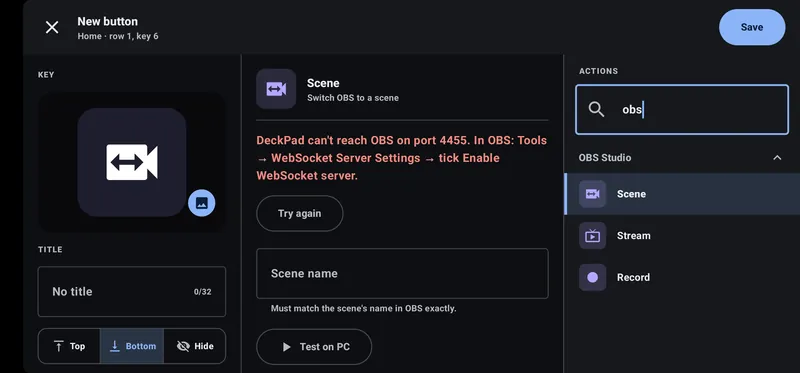
DeckPad's real Scene editor showing: DeckPad can't reach OBS on port 4455. In OBS: Tools, WebSocket Server Settings, tick Enable WebSocket server. Below are Try again, the Scene name field and Test on PC.
The real editor when OBS can't be reached: DeckPad says why right where the scene list would be. Fix it, then tap Try again.
OBS closed?

You can still make the key: type the name in Scene name. It must match the scene's name in OBS exactly.

4. Go live and Record keys

  1. Tap an empty key, open OBS Studio in the action list and choose Stream. It “starts streaming in OBS, or stops it if you're live”. Title it Go live and save.
  2. Do the same with Record, which “starts recording in OBS, or stops it if it's recording”.

OBS streams to the service and key set in its own Settings → Stream, so set that up in OBS first.

5. A key that opens OBS

  1. Tap an empty key and choose Open app (under Open).
  2. Tap Choose an app on the PC and pick OBS Studio. The key gets OBS's real icon.
  3. Turn on If it's already open, bring it to the front, then save.

A Streamlabs key works the same way; see Streamlabs setup.

6. Make them glow (optional)

In the button editor, switch on Glow (“A neon halo around the key”) and pick a colour. Violet for scenes and red for Go live and Record is easy to read at a glance:
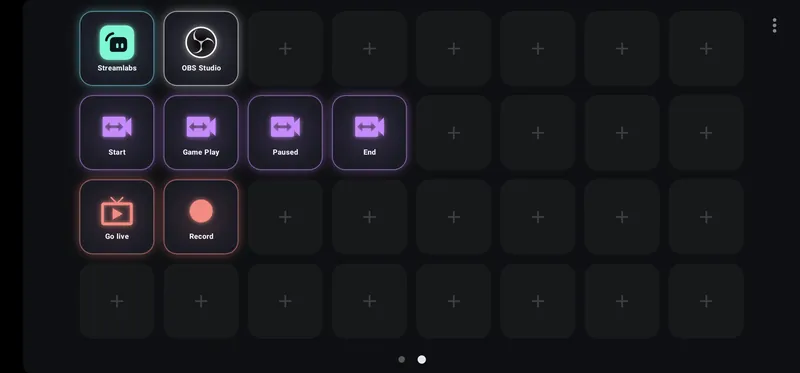
The finished Streaming page with Glow on: Streamlabs, OBS Studio, Start, Game Play, Paused, End, Go live and Record
The finished Streaming page, Glow on.

Troubleshooting: what the phone says, and the fix

When an OBS key can't do its job, DeckPad shows why, on the phone when you press the key and in the editor's Scene section. Find the message here:

OBS Studio isn't open on the PC.

Start OBS Studio on the same PC as DeckPad for Windows, then press the key again (in the editor, tap Try again or Refresh scenes).

This PC has OBS 26.0.2. OBS buttons need OBS 28 or newer, which has the remote control built in. Update OBS from obsproject.com.

Your version number appears in the message. Install OBS Studio 28 or newer from obsproject.com (export your scenes first: Scene Collection → Export), then turn on the WebSocket server.

OBS's remote control is off. In OBS: Tools → WebSocket Server Settings → tick Enable WebSocket server.

Do exactly that, click OK, and press the key again. Step 1 shows the window.

DeckPad can't reach OBS on port 4455. In OBS: Tools → WebSocket Server Settings → tick Enable WebSocket server.

First make sure Enable WebSocket server is ticked. If it is, compare the Server Port there with the port in the message. If they differ (a portable OBS, or a port you set in DeckPad's settings), set "obsPort" to OBS's port as described in Advanced, or remove the old value.

OBS asks for a password. Set “obsPassword” in DeckPad's agent-settings.json to the one in OBS (Tools → WebSocket Server Settings).

DeckPad couldn't find the password OBS saved. Copy it from Show Connect Info into "obsPassword", following these steps.

OBS refused DeckPad's password. Set “obsPassword” in DeckPad's agent-settings.json to the one in OBS (Tools → WebSocket Server Settings).

The password changed in OBS, or "obsPassword" in DeckPad's settings is out of date. Put the current one from Show Connect Info there, or remove "obsPassword" so DeckPad reads OBS's saved password again.

OBS has no scene called “Game Play”.

The key's scene name doesn't match any scene in OBS's current scene collection. Check capitals and spaces, or edit the key and pick the scene from the list again. If you switched scene collections in OBS, switch back.

Streamlabs Desktop is open, but OBS buttons control OBS Studio. For Streamlabs, give each scene a hotkey in Streamlabs (Settings → Hotkeys) and use a Shortcut button.

You stream with Streamlabs Desktop, and OBS Studio isn't running. Follow the Streamlabs setup: hotkeys in Streamlabs, Shortcut keys in DeckPad.

Something else, or a message starting “OBS said:”? That's OBS's own answer. See the FAQ or contact support.